
Short answer
VS Code keeps MCP servers in .vscode/mcp.json for a workspace and a profile mcp.json for the user, both under a top-level servers key. As of 18 November 2026 those belong to the Local harness, deprecated and due to be removed by February 2027. New Copilot configs go in .mcp.json at the workspace root or ~/.copilot/mcp-config.json, under mcpServers.
VS Code reads MCP servers from two kinds of file, and since the docs were rewritten they are not equal. .vscode/mcp.json and the profile mcp.json use a top-level servers key and belong to the Local harness, which VS Code now marks deprecated and due to be removed by February 2027. New Copilot configuration goes in .mcp.json at the workspace root, or in ~/.copilot/mcp-config.json for every workspace, under mcpServers.
That is why the guides ranking for this disagree with each other. Some say the key must be servers and warn you off mcpServers, others show mcpServers, and as of 18 November 2026 both are right, for different harnesses. This post sorts out which file is which, what the Copilot harness will and will not carry over from the old one, and which file a team should commit. The last part is where a shared notes server such as Baalda fits, and where the format change matters most, because an entry that carries a secret or a local command is exactly the kind that does not survive the move.
Where is mcp.json in VS Code?
There are four places a VS Code session can get MCP servers from. The first two are the native Copilot files, the last two are the older editor-managed ones.
| File | Top-level key | Scope | Read by |
|---|---|---|---|
.mcp.json at the workspace root | mcpServers | One workspace, shareable | Copilot harness, directly |
~/.copilot/mcp-config.json (or $COPILOT_HOME/mcp-config.json) | mcpServers | You, across workspaces | Copilot harness, directly |
.vscode/mcp.json | servers | One workspace | Local harness; forwarded to Copilot when eligible |
Profile mcp.json | servers | Your VS Code profile | Local harness; forwarded to Copilot when eligible |
To open the old files, run MCP: Open Workspace Folder MCP Configuration for .vscode/mcp.json or MCP: Open User Configuration for the profile one. The profile file belongs to your VS Code profile, and the docs give no path to type for it, only the command, which is why most guides send you through the Command Palette instead of naming a location.
VS Code can also pick up servers that other apps configured, through the chat.mcp.discovery.enabled setting: Claude Desktop's claude_desktop_config.json, Cursor's ~/.cursor/mcp.json, Windsurf's mcp_config.json, and the Copilot CLI's own file. Only the Copilot CLI source is on by default. If you are after the Claude Desktop file in particular, the path on each OS is here.
Which file does Copilot read now?
VS Code's MCP reference is direct about it: "For new Copilot configurations, use these native destinations, not .vscode/mcp.json or profile mcp.json." The old files use what the page calls "the deprecated Local harness's" editor-managed format, and the harness page says the Local harness "is deprecated and will be removed by February 2027."
The old file is not ignored in the meantime. "Eligible existing definitions can be forwarded, but the harness doesn't read those files directly." Eligible is doing a lot of work in that sentence. The reference lists what does not make the trip:
- Servers that need
${input:...}or${command:...}. They "are rejected before variable resolution", so the classic pattern of prompting for an API key with a password input does not reach a Copilot session at all. envFile, development mode and per-server sandbox rules. They "do not transfer."- Credentials from another host. Copilot user configuration "is read on the host where the harness runs."
So a .vscode/mcp.json that starts a local process with an envFile and a prompted key works in a Local harness session and quietly goes missing in a Copilot one. If a server shows up in one chat and not another, this is the first thing to check.
What does each format look like?
The old editor-managed format, with the input prompt that the Copilot harness now rejects. This one is VS Code's own example:
{
  "inputs": [
    {
      "type": "promptString",
      "id": "perplexity-key",
      "description": "Perplexity API Key",
      "password": true
    }
  ],
  "servers": {
    "perplexity": {
      "type": "stdio",
      "command": "npx",
      "args": ["-y", "server-perplexity-ask"],
      "env": {
        "PERPLEXITY_API_KEY": "${input:perplexity-key}"
      }
    }
  }
}
The native Copilot format, which is the same shape Claude Code and the Copilot CLI use, so one file can serve more than one tool:
{
  "mcpServers": {
    "playwright": {
      "type": "stdio",
      "command": "npx",
      "args": ["-y", "@playwright/mcp@latest"],
      "tools": ["*"]
    },
    "context7": {
      "type": "http",
      "url": "https://mcp.context7.com/mcp",
      "tools": ["*"]
    }
  }
}
The portable fields are type (stdio, http or sse), command, args, env, cwd, url, headers, tools and oauthClientId. tools: ["*"] exposes every tool the server has; listing names narrows it, and either way it "doesn't bypass tool approvals." Secrets come in through environment references instead of prompts: ${NAME}, or ${NAME:-default} for a value that is not secret, read from the environment of the host that runs or connects to the server. Use the braced form, because the VS Code client treats a bare $NAME as literal text.
How do you add an MCP server in VS Code?
Three ways, and they do not all write to the same file.
- MCP: Add Server from the Command Palette. It walks you through HTTP or a command, an npm, pip or Docker package, or adding from another application.
- Chat: Open Customizations, then MCP Servers, then Add Server. This is the guided flow the docs now lead with. It offers the workspace-root
.mcp.jsonas a destination only when the experimentalchat.mcp.workspaceRootConfig.enabledsetting is on. - `code --add-mcp` from a terminal, with a JSON object that includes a
name. This writes the user profile file in the old VS Code format, not the portable one.
code --add-mcp '{"name":"playwright","type":"stdio","command":"npx","args":["-y","@playwright/mcp@latest"]}'If you want the result to land in .mcp.json, the dependable route is to edit the file by hand. One more catch from the docs: the guided form for the workspace-root file rejects ${...} expressions, so environment references have to be typed into the source file directly.
Which file should a team commit?
.mcp.json at the workspace root. The docs list "Share server definitions with your team" as the reason that file exists, and they are just as clear about what cannot go in it: "Do not commit tokens, passwords, or populated authentication headers."
There is a second reason to read a shared .mcp.json carefully before you trust the repository. VS Code's trust rules say workspace .vscode/mcp.json and .mcp.json servers "inherit Workspace Trust", and "in a trusted workspace, they can start without a separate MCP trust prompt, including after configuration changes." A stdio entry is a command. Commit one and every teammate who trusts the folder runs it on their own machine the next time a session starts, with no MCP-specific prompt in between. An http entry is a URL. It starts nothing locally.
That splits the servers a team might share into three kinds:
- Local tools such as Playwright: fine to commit, since the command is public and needs no secret, but each one is code that runs on every machine.
- Services with a shared API key: commit the entry with a
${NAME}reference, never the key, and accept that every person who sets the variable gets the same access. - Services where each person is someone different: the entry should carry nothing personal at all, and the server should find out who is asking when they sign in. A team's notes are the clearest case, because the point of shared notes is that not everyone sees every folder.
How do you connect a team's notes in .mcp.json?
This is the case Baalda is built for. A Baalda vault is a folder of plain markdown files on each member's disk, edited together in real time, and the same server exposes it to AI assistants over MCP at /api/mcp. Every call runs as one person in one vault, and the note tools return only what that person can read under the vault's per-folder permissions.
Because the endpoint is a remote HTTP server that implements MCP's OAuth flow, the committed entry needs no token, no command and no environment variable:
{
  "mcpServers": {
    "team-notes": {
      "type": "http",
      "url": "https://api.baalda.com/api/mcp",
      "tools": ["*"]
    }
  }
}
On a self-hosted server, use your own URL plus /api/mcp. When a session first calls the server, Baalda answers 401 with a WWW-Authenticate header pointing at its protected-resource metadata, which is how an MCP client discovers where to sign in. Baalda's server supports dynamic client registration with PKCE, and VS Code's MCP documentation says Copilot sessions support OAuth providers "through Dynamic Client Registration (DCR) or a pre-registered OAuth client", with an Authenticate action on the server when sign-in is needed. Each person signs in to their own Baalda account and picks the vault on the consent screen. The file in the repository is identical for everyone. What it reaches is not.
That entry also has none of the things the harness move drops. No ${input:...}, no envFile, no local process, so it reads the same in a Copilot session as it would in a Local one, and the same URL works in Claude Code, Codex and the Copilot CLI. If you migrate a .vscode/mcp.json before February 2027, an entry like this is the one that needs no rewrite.
Both halves of that sign-in flow are documented, Baalda's in its MCP setup guide and VS Code's in the reference above, but we have not run this exact pairing end to end. If sign-in does not complete, the token route works anywhere a client can send a header. Each person creates their own token in Vault Settings, MCP:
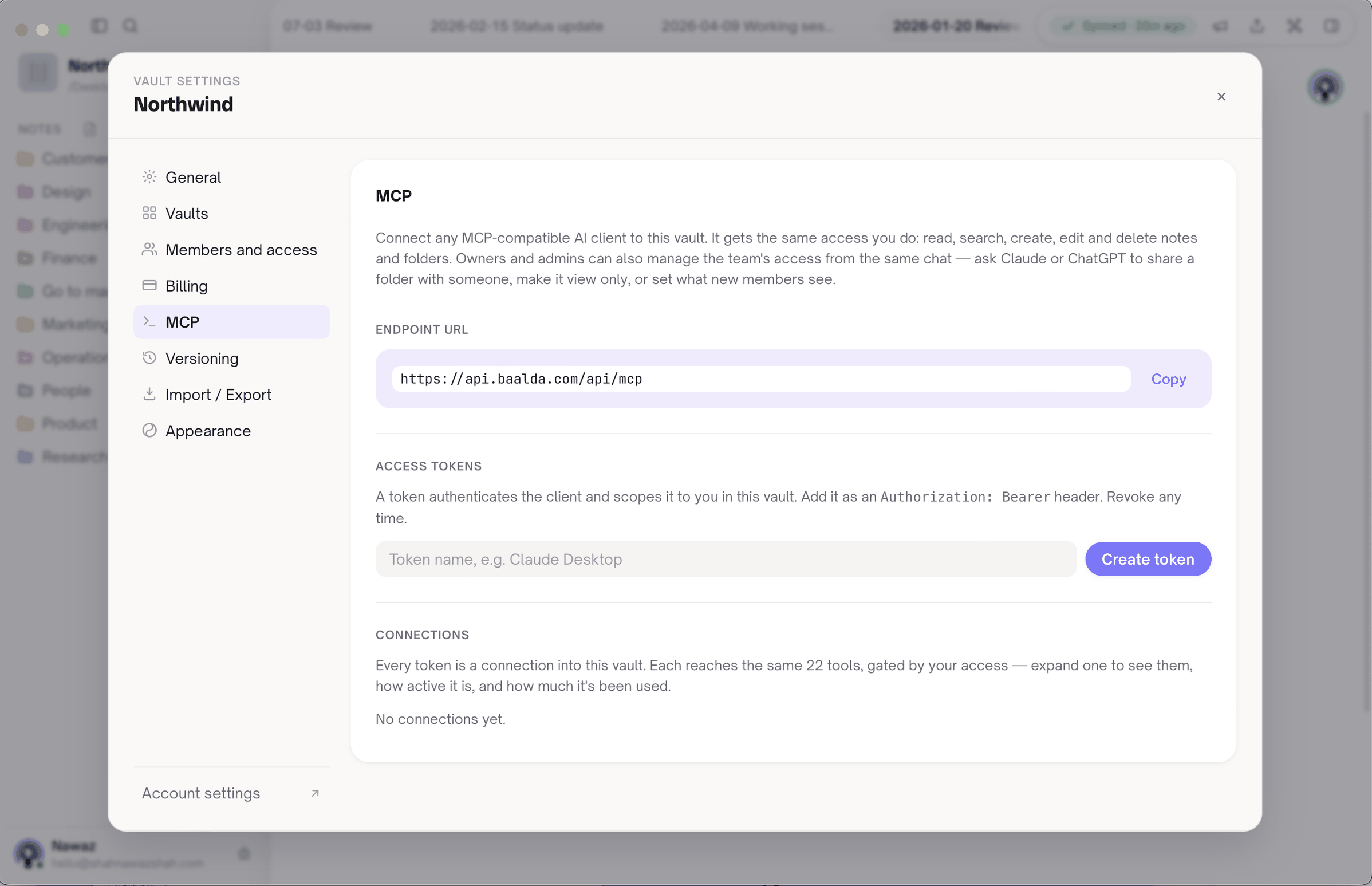
Then the committed entry references a variable instead of holding the token, and each person sets BAALDA_MCP_TOKEN in their own environment:
{
  "mcpServers": {
    "team-notes": {
      "type": "http",
      "url": "https://api.baalda.com/api/mcp",
      "headers": {
        "Authorization": "Bearer ${BAALDA_MCP_TOKEN}"
      },
      "tools": ["*"]
    }
  }
}
A token acts as the person who made it, so it is as personal as a password. Revoking it on the same settings page cuts that one connection off from the next call. If you use Copilot from the terminal as well, the Copilot CLI setup is in this post, along with where Copilot's own memory stops and a team's notes have to take over.
Where this does not help
The format change is VS Code's, and nothing here makes it less work for the other servers in your file. A stdio server that needed a prompted key still has to be moved to an environment reference, and Workspace Trust still decides whether committed commands run.
The OAuth path above is documented on both sides and untested by us from VS Code, as said. Copilot cloud agent on github.com has its own MCP setup, which this post does not cover. And a Baalda server reaches notes in a Baalda vault. It does not make a Notion workspace or a Confluence space readable, and if your team's knowledge lives there, the honest answer is that service's own MCP server. If you are weighing what a shared server should be allowed to do at all, the case for and against MCP on a team's private notes is the place to start.