
Permissions
Share the vault, not everything in it.
Decide who can edit, who can read and who never sees a folder or a single note. The server enforces it, every person's AI inherits it, and a note someone loses access to leaves their disk.
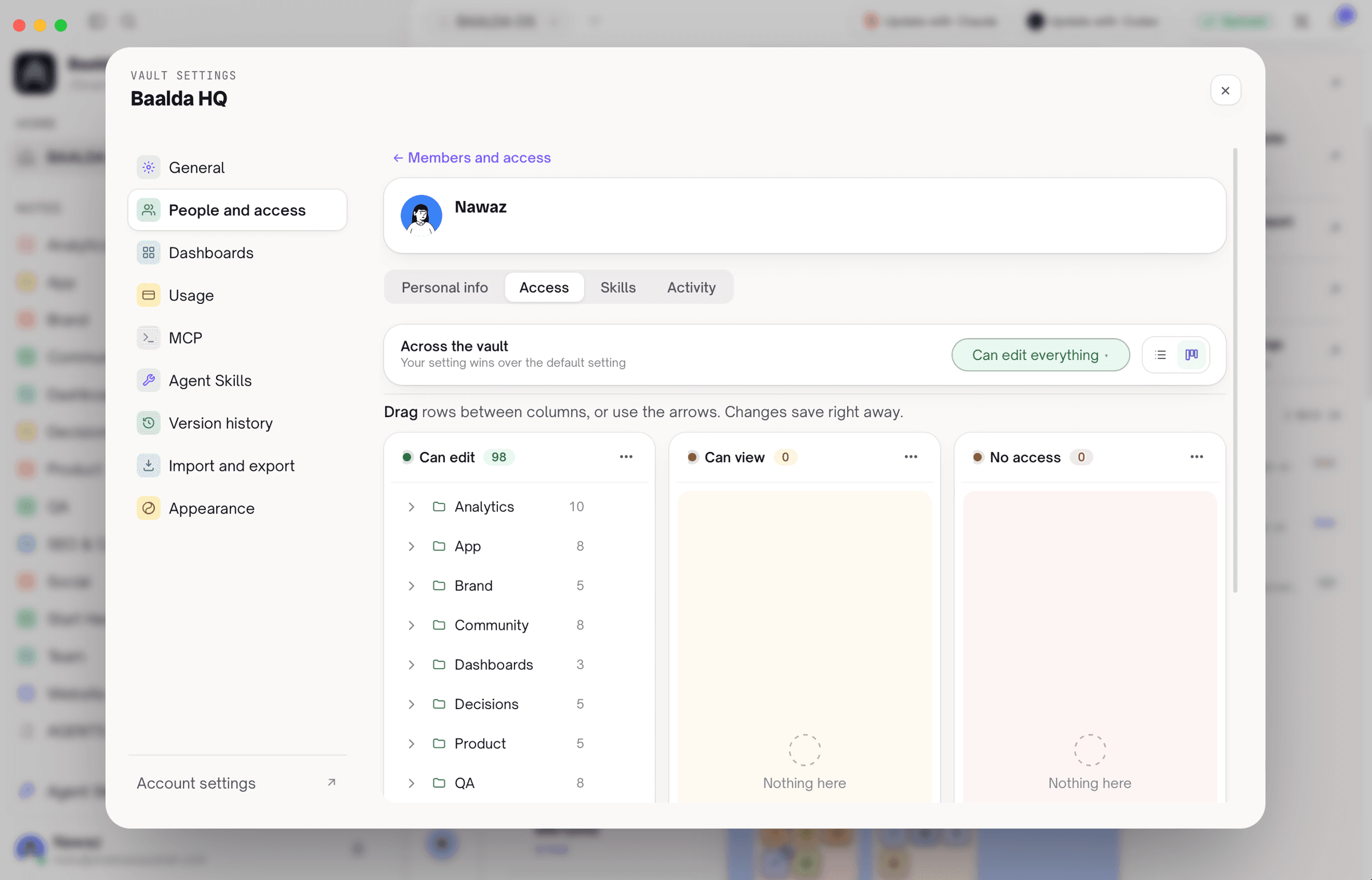
Three levels
Can edit, Can view, No access.
Every folder and every note in a synced vault has one of three levels for each person. The same three words appear everywhere in the app, colour-coded the same way, so nobody has to translate a permissions matrix.
Opens the note, types in it with everyone else, and their AI can write to it.
Reads it and follows live edits, but cannot change it. The sidebar shows a padlock.
Never sees it. It is not in their sidebar, their search, their AI's tools or on their disk.
Three controls
Set the team once, then adjust per person.
Vault Settings, People and access holds three controls. Owners and admins can change them; everyone else sees a read-only roster.
- Everyone in the vaultThe team's level across every folder and note. Changing it rewrites the team's access everywhere in one step, and people you gave access to by name keep it.
- New membersWhat someone gets on the notes that existed before they joined. It is set when they join, so changing it later never reaches back into people already in the vault.
- Each personCan edit everything, Can view everything, No access, or Custom. Custom means their folders differ, and their Access tab shows exactly how.
The access board
Drag a folder to change who sees it.
Each person's Access tab is a board with three columns. Drag a folder or note between Can edit, Can view and No access, or use the arrows, and the change saves straight away. A List view shows the same thing as a checkbox tree.
Only changes that take access away ask for confirmation. Moving something to Can view or Can edit never does.
An example: Finance is being dragged to No access for Sam. It saves on drop, after one confirmation.
Your AI follows the same rules
Each assistant reaches what its person can open.
Claude, Codex, Cursor or any MCP client connects with a token that belongs to one person in one vault. Every call is checked against that person's access: a folder they cannot see does not appear in a listing or a search, and cannot be read, written or renamed.
A local agent such as Claude Code reads the files on your disk, and a note you have no access to is not on your disk in the first place. Either way, the most private note in the vault is not one prompt away from the whole team.
| Folder | Ana's Claude | Ben's Codex |
|---|---|---|
| Engineering | Can edit | Can edit |
| Product | Can edit | Can view |
| Finance | Can view | No access |
| Hiring | No access | No access |
An example vault. Each assistant's listings, searches, reads and writes are checked against its person's column.
Enforced by the server
Not hidden in the interface. Refused at the door.
Before the app syncs a note, it asks the server for a token for that one document. The server works out the person's level and hands back a read-write token, a read-only one, or a refusal. The editing connection will not open without it.
Tokens last ten minutes by default, and taking access away closes any open connection at once rather than waiting for the token to run out.
- 1Open a noteThe app asks the server for a token for that one document.
- 2Server decidesIt works out your level from the rules, on the server.
- 3Token or refusalRead-write, read-only, or a refusal. Ten minutes by default.
- 4Editing opensThe live connection checks the token. Revoking closes it at once.
When access ends
The file leaves their disk too.
Removing someone's access moves that note's local file into the trash on every device of theirs that had it. A revocation that left a readable copy behind would only be cosmetic, since any editor could open it forever.
The server keeps the content, so nothing is deleted for the team. Give access back and the note reappears and syncs again.
How a level is decided
A few rules, applied in order.
- Folders pass access downEverything inside a folder gets the folder's level. A grant on a single note can only raise it, never lower it.
- No access for a person winsA No access set for someone on a note, or on any folder above it, blocks them, whatever their role or other grants say.
- Owners, admins and authors can editUnless the item is not shared with the team, or the team's level is Can view. Then they follow the same rules as everyone.
- Otherwise, the highest grantEdit beats view beats nothing. With no matching grant, a person has no access at all.
- A lock caps at viewLocking a note makes it read-only for everyone who could edit it. It never grants access and never removes it.
Good to know
What it does not do.
- Permissions apply to synced vaults. A local-only vault on one computer has no members, so there is nothing to restrict until you turn on sync and sharing.
- Access stops the vault from syncing a note to someone. It cannot reach a copy they already saved somewhere else before you removed them.
- Changing access is for owners and admins. Members can see who has access, but cannot change it.
FAQ
Frequently asked questions
Can I give one person access to a single note?
Yes. Grant that person Can view or Can edit on the note itself. A grant on a single note can only raise their access, so it works inside a folder they otherwise cannot open.
Does my AI assistant see notes I cannot see?
No. An MCP token belongs to you in one vault, and every call is checked against your access, so folders you cannot see do not show up in its listings or searches. A local agent reads the files on your disk, and notes you have no access to are not synced there.
What happens to the files on someone's computer when I remove their access?
The note's local file moves to the trash on each of their devices that had it, and the server keeps the content. If you give access back, the note syncs to them again.
Who can change permissions?
Owners and admins of the vault. Other members see the roster and their own access, but cannot change anyone's.
Is a new vault private by default?
A new vault starts with the team on Can edit, so invited teammates land on something they can use. To make it private, set Everyone to No access and grant people by name.
Start your team’s brain
Free and open source. No account needed.